

How to onboard your team to a task app in two weeks
Many teams drop a new task app within a month. Start with one real project, a few agreements and a weekly meeting around the lists, then grow.
You signed up for a new task app, invited the team, and everyone added a few tasks on the first day. A month later, everyone is back in the group chat, and the app holds old tasks nobody updates. Plenty of teams have lived this story, and the tool is rarely the problem.
A team does not move to a new tool because it exists. It moves because the switch was made on purpose: one real project, a few agreements and a weekly habit that holds it in place. Here is a two-week way to onboard a small team, from three to twenty people, to shared task lists, so you can run the team's work calmly without chasing anyone.
The short answer: to onboard a small team to a task app, start with one real project instead of all your work, and agree on three rules before the first task: one owner per task, no due date unless it is real, and discussion in the task's comments rather than in chat. Then run the weekly meeting from the lists on the screen, and expand after two weeks.
Before day one: set up one project
The biggest mistake is moving everything at once. Hundreds of old tasks turn the new tool into an archive before anyone gets used to it. Instead, choose one real project that most of the team will work on in the coming weeks: a product launch, a campaign, setting up a new office.
Then set up its structure before you invite anyone:
- One project with a clear name everyone recognises.
- A few lists inside it, three or four, such as Design, Content and Operations, or one per stage of the work.
- A few real tasks in each list, so nobody opens an empty project.
Also prepare a short page with the team's agreements. That is what turns a tool into a way of working.
The team agreement: a template to copy
Write these down before the first meeting, read them with the team, and adjust them together:
- One owner per task. We start the task's title with the person's name, such as "Sara:". A task with no owner is a task nobody works on.
- A due date is a promise. We set one only when it is real. If a task will be late, we move its date straight away and say why in a comment.
- Discussion stays with the task. Questions, decisions and files go in the task's comments, not in chat.
- Every request becomes a task. When someone asks for something in chat or in the corridor, the answer is: "Add it as a task."
- We update before anyone asks. Done means marked done; stuck means a comment right away.
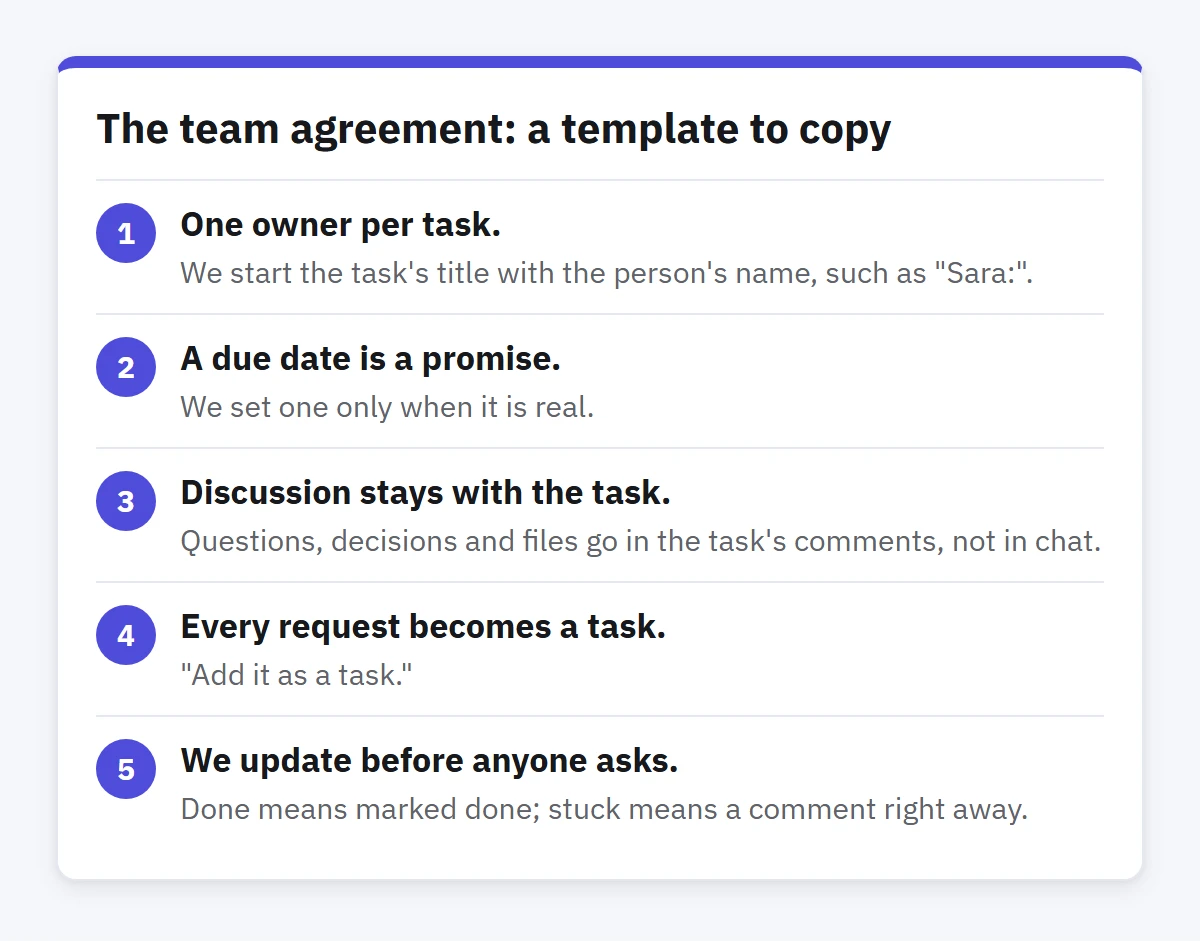
Five rules are enough. If you need more at the start, you are probably building a heavier system than the team needs. The habits behind them are covered in Run a small team's work without drowning in meetings.
Week one of onboarding your team: start small
Day one: a 30-minute kickoff. Show the project and its lists on screen, read the agreements, then ask each person to add two or three tasks they are working on this week, themselves. A task people write with their own hands makes the place theirs, not the manager's.
The following days: bring requests back to the lists, gently. People will slip back into old habits, and that is expected. When a request arrives in chat, do not scold anyone. Add it as a task yourself and send the link, or reply "Add it as a task so I can follow it." After a few days, this becomes normal.
Every morning: one look. Ask everyone to open the lists once in the morning to see what is due today and what is late. Two minutes is enough, and it is the habit that keeps the lists alive.
Above all, the team lead has to use the lists first this week. If the manager keeps following up in chat, the team gets the real message and does the same.
Week two: the weekly meeting around the lists
At the end of the first week or the start of the second, hold the first weekly meeting with the lists open on the screen. Keep it to thirty minutes, in this order:
- Overdue: every late task gets a decision: a new date with a reason, a split, or drop it.
- Due this week: does every task have an owner and an honest date?
- Blocked: what is waiting for a decision or for someone else?
- The agreements: which rule is not working? Change it now, instead of everyone quietly ignoring it.
Update the lists during the meeting, not after it. At the end of week two, if people update their tasks without reminders and little is overdue, add the second project, then the next one.
Mistakes that stall the switch halfway
- A complex structure from day one. Dozens of lists and tags turn every new task into a question about where it goes. Start small and add when the need shows up.
- Two channels for the same work. If tasks live in chat and in the lists at the same time, nobody trusts either.
- The lead does not use the tool. Teams follow what you do, not what you say.
- Moving everything at once. Old tasks bury new ones. Move only what is active and leave the rest where it is.
- Nobody cleans up. Lists nobody reviews fill up with dead tasks. The weekly meeting is cleanup time.
How to do this in Enjazy
On Enjazy Online, the Team plan covers a set number of people, 5, 10, 20 or 30, at one price for the whole team, and you, the owner, take one of the places. Confirm your email address first, then add your colleagues in Settings › Plan › Team members: type an email address and choose Add member. Each person gets an invitation link that works once, for 7 days. While your plan is active, every member gets Team features. For more than 30 people, contact us about Business.
Then share the project itself from Sharing, with an invitation link or a join code. Every member has a role: the owner manages access, editors change tasks and viewers can only look, which suits a manager or a client who follows along without changing anything. Choosing who can only view is part of the Team plan. Changes sync to everyone automatically.
Enjazy also makes the start easier for each new member. The guided tour opens by itself the first time they use Enjazy and takes them through the main screens in ten short steps, and each main view shows its advanced features the first time they open it. You do not need to explain every button in the kickoff.
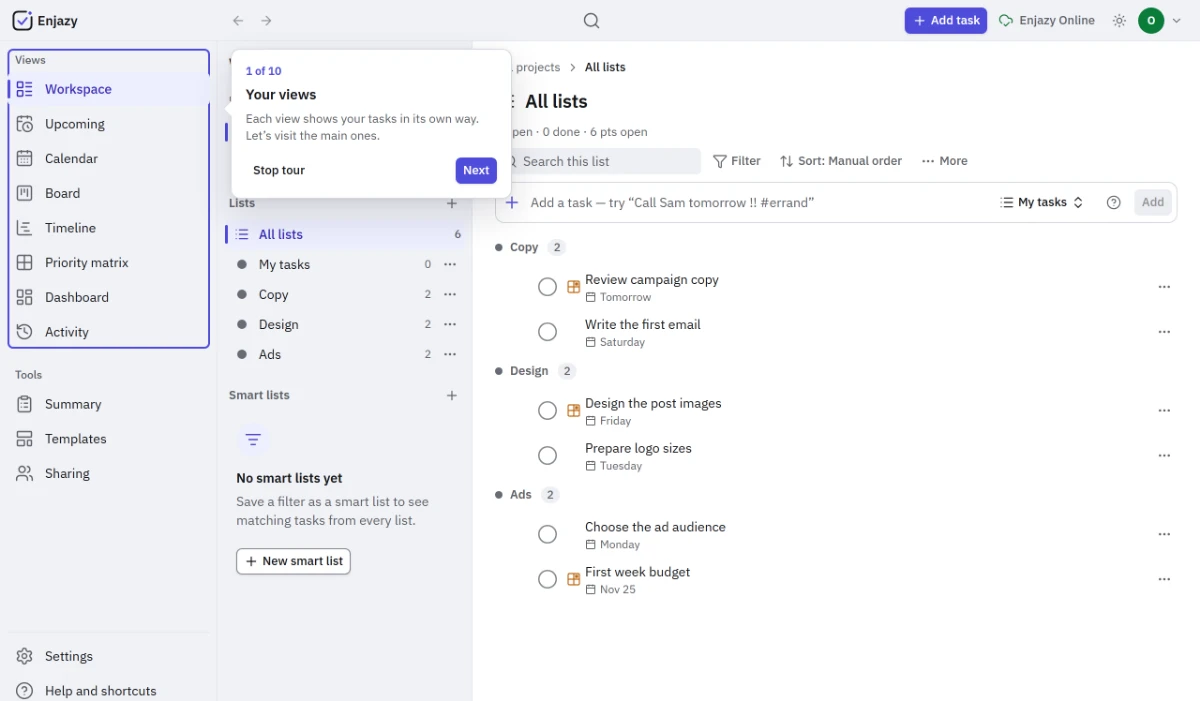
The agreements have ready-made tools too: the owner's name at the start of the title, added with quick add as in Omar: Review campaign copy thu, which every member sees; a smart list per person, with their name in Contains words, that gathers what they own from every list; and comments on every task that keep the discussion with the work. In the weekly meeting, show Board with its To do, In progress and Done columns, and check Activity to see what happened during the week without asking. When work depends on other work, Timeline shows tasks as bars, with connectors between dependent ones. All of this is included in the Team plan.
Start with one project this week: create your Enjazy Online account at the.enjazy.app, compare the Team sizes and what they include at enjazy.app/pricing, and get the Windows and Android apps at enjazy.app/download.