

Time blocking: how to give every task a place in your week
A to-do list says what; time blocking says when. How to block a week in your calendar, size each block honestly and keep going when the week changes.

On Sunday evening, the week looks manageable on paper: a report to finish, a presentation for Thursday's meeting, a pile of emails to answer. Then Monday disappears into meetings, Tuesday into small emergencies, and on Wednesday afternoon you notice you have not opened the report yet.
The list was never the problem. It tells you what to do, but not when. Time blocking fills that gap: it gives your important work an appointment in your calendar, the same way a meeting gets one.
What is time blocking? Time blocking means splitting your week into calendar blocks and giving each block one task or one kind of work: two hours on the report on Monday morning, half an hour for email after lunch. Instead of asking "what now?" all day, you find the answer already in your calendar.
Why time blocking works
- It shows you the truth early. Once your tasks sit in hours, you see at once that the plan needs twenty hours and you have twelve. Better to learn that on Monday morning than the night before a deadline.
- It protects important work from urgent work. Messages and small requests fill any empty space they find. A booked block stops them from taking your best hours.
- It cuts down on decisions. You decide once, at the start of the week, instead of every hour.
- It makes your promises realistic. When someone asks you for something, you look at your calendar and know whether you really have time for it.
How to time-block your week, step by step
1. Start with the fixed points
Put in first what you do not control: meetings, appointments, the commute, the school run. What is left is your real working time, and it is usually less than you think.
2. Book deep work before anything else
Give your two or three most important pieces of work blocks of ninety minutes to two hours, in your best hours. Do not book more than two of these a day. Deep focus is a limited resource, and a third block usually ends up as a tired one.
3. Estimate, then add a margin
Write down how long each task should take, then add a quarter. Work almost always runs longer than expected, and a block with no margin collapses at the first phone call. If you have no idea how long something takes, time it this week, and next week you will know.
4. Batch the small things into their own blocks
Emails, quick calls and forms do not deserve a block each, but together they do. Book half an hour or an hour for them once or twice a day, and get through whatever fits.
5. Leave gaps on purpose
Do not fill every hour. Leave at least one hour a day unbooked. That hour absorbs the surprises and the overruns; without it, the first delay drags a chain of others behind it.
A sample time-blocked week
Here is an example week for someone who works Monday to Friday. Change the hours to fit yours:
| Block | Monday | Tuesday | Wednesday | Thursday | Friday |
|---|---|---|---|---|---|
| 8:00–10:00 | Deep work: report | Deep work: report | Deep work: presentation | Deep work: presentation | Weekly review |
| 10:00–12:00 | Meetings | Emails and small tasks | Meetings | Emails and small tasks | Meetings |
| 13:00–14:00 | Buffer | Buffer | Buffer | Buffer | Buffer |
| 14:00–16:00 | Team tasks | Learning | Team tasks | Follow-ups | Set up next week |
| 16:00–16:30 | Emails | Emails | Emails | Emails | Emails |
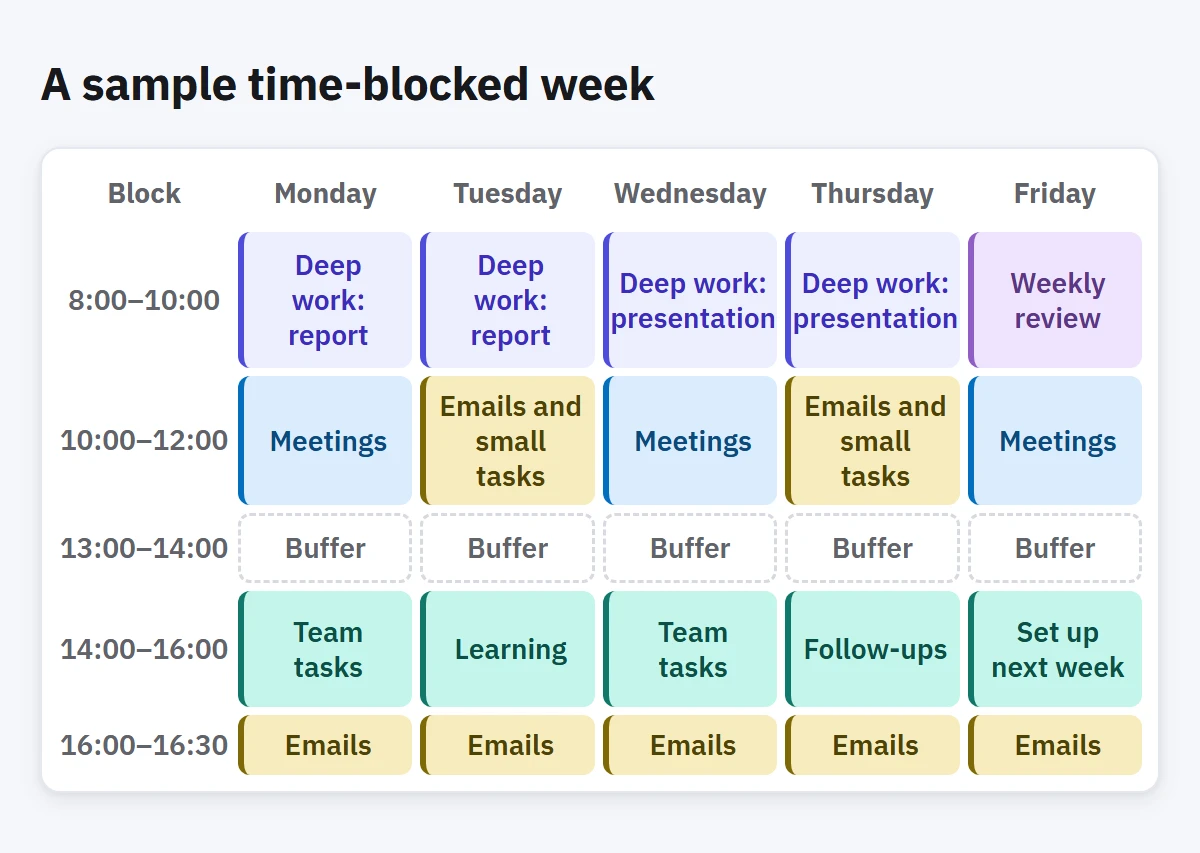
Plan the whole week in one short session, at the end of the week before or first thing on Monday. Copy these steps:
Weekly blocking session (20 minutes)
- Put in the fixed points: meetings, appointments, travel.
- Choose the three most important pieces of work for the week and estimate each one.
- Book deep-work blocks for them in your best hours.
- Book one or two blocks a day for small tasks.
- Leave one empty hour every day.
- Ask: does the week hold all of this? If not, cut or postpone something now.
When the week changes: re-block, don't give up
Your week will change: an urgent meeting, a task that runs over, a sick day. That does not mean time blocking failed. It means you re-block. Move the lost block to the nearest gap instead of deleting it, and if there is no gap, choose clearly what gets postponed, rather than letting something slip on its own.
It helps to spend five minutes at the end of each day looking at tomorrow's calendar, so you fix what has changed before the new day starts. For the full end-of-day routine, see How to plan a day you can actually finish.
Time blocking mistakes to avoid
- Booking every minute. A completely full calendar breaks in the first hour of the week.
- Blocks without a specific task. "Work on the project" is not a block. "Write the budget section" is.
- Treating blocks as suggestions. If you accept every meeting someone places over a booked block, you will soon have no blocks left. Offer another time, as you would for any other appointment.
- Never comparing estimates with reality. If your blocks always run over, it is your estimates that need fixing, not your willpower.
How to do this in Enjazy
Open Calendar in Week view: every task with a time sits at its hour, and you can drag it to another hour or another day when your week changes. To give a task a time, set its due date first, then pick the hour in the same Due picker. The Day view lists the day in two parts, All day and At a time, so you can see what is tied to an hour and what is still flexible.
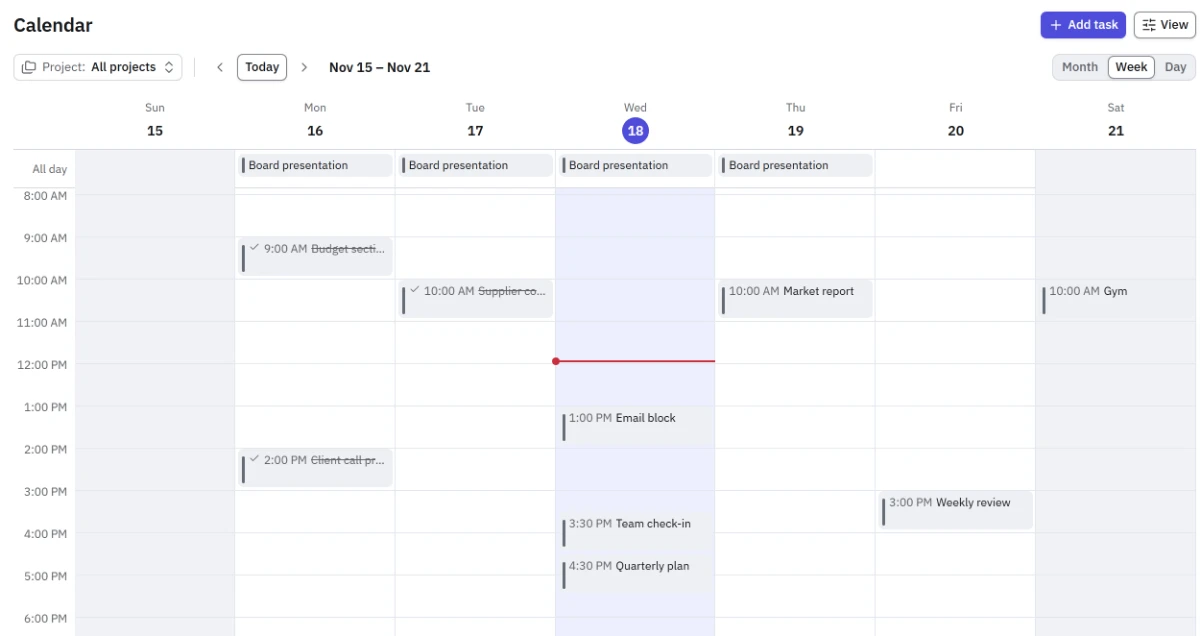
Quick add gets the tasks in fast: Write budget section mon !!! adds a task due on Monday with high importance, and you then open it to choose the hour. Write each block's length in the task's estimate, and start the task's timer when you begin, so Enjazy records the time you really spent. After a couple of weeks, the Dashboard (in the Pro plan) compares your time with your estimates, which tells you how much margin you need. Its Can I finish? card also warns you when what is due over the next two weeks is more than your daily capacity.
For fixed blocks, such as the daily email block or your weekly review, create a task that repeats on the days you choose and give it a time. Calendar shows it at its hour on its next due date, and it moves to the following date when you complete it. If the routine is temporary, end the repeat on a date or after a set number of times. For work that spans several days, give the task a start date and turn on "Show start to due as a span" in View options; Calendar then shows it as a bar from its start to its due date.
Block your first week today: create a free account at the.enjazy.app, download the apps from enjazy.app/download, or see the plans at enjazy.app/pricing.